9 WhatsApp Privacy Settings to Change Before You Join Any Group
Updated 20 Oct 2026
Contents
- 1. Who can add you to groups
- 2. Profile photo
- 3. About and status
- 4. Last seen and online
- 5. Read receipts (optional)
- 6. Silence unknown callers
- 7. Two-step verification
- 8. Disappearing messages and media visibility
- 9. Automatic downloads
- Bonus: lock and privacy checkup
- Settings inside each group
- If you already shared too much
- What these settings cannot hide
- Habits that complete the picture
- Helping family members
- All the recommended settings at a glance
When you join a public WhatsApp group, you are not only joining a conversation — you are showing your phone number to every other member, many of whom you will never meet. Most people never notice, until they get unexpected calls, strange private messages, or get added to a dozen spam groups. The good news is that WhatsApp gives you strong privacy controls, and setting them up properly takes about five minutes. Do it once, before you start exploring groups, and you will enjoy them with far less risk.
Menu names below are from current WhatsApp versions. On Android, open Settings from the three-dot menu; on iPhone, tap Settings at the bottom. Then go to Privacy unless stated otherwise.
1. Who can add you to groups
Where: Privacy → Groups
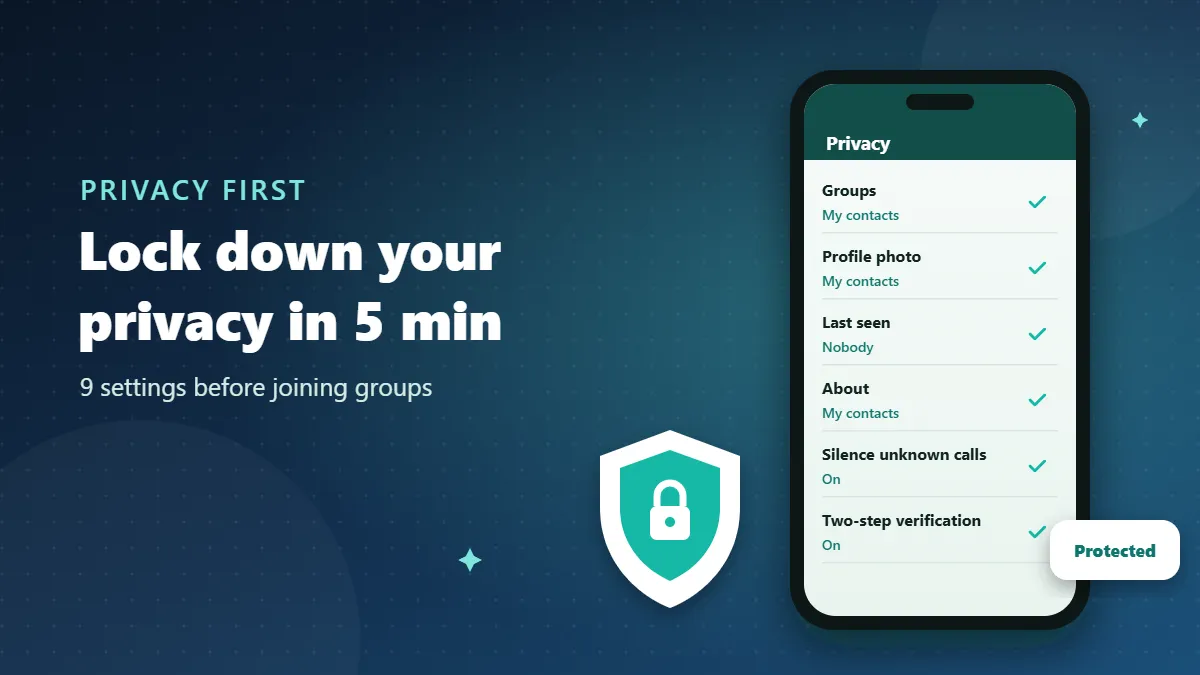
By default, anyone who has your number can add you to any group. Change it to My contacts or My contacts except…. When someone outside your contacts tries to add you, they can only send you an invitation, which you can accept or ignore. This one setting stops most spam groups, fake job groups and “investment clubs” that collect numbers from public groups.
2. Profile photo
Where: Privacy → Profile photo
Set it to My contacts. Your photo is often the most personal thing strangers can see: your face, your children, your home or your workplace. In groups, members who have not saved your number will see a plain avatar instead.
3. About and status
Where: Privacy → About, and Privacy → Status
The “About” line sometimes contains a job title, a city or a business name. Status updates can show where you are and who you are with. Limit both to My contacts — or a smaller list for status — so group members cannot build a picture of your daily life.
4. Last seen and online
Where: Privacy → Last seen and online
Choose My contacts or Nobody, and set “Who can see when I’m online” to Same as last seen. Strangers then cannot tell when you are active or track your daily routine. Remember that if you hide your last seen, you cannot see other people’s either.
5. Read receipts (optional)
Where: Privacy → Read receipts
Turning off read receipts hides the blue ticks in private chats. In groups, read details are still visible to the sender through message info, but turning them off reduces pressure to reply instantly to private messages from people you met in groups. It is optional — some people prefer to keep them on with friends.
6. Silence unknown callers
Where: Privacy → Calls → Silence unknown callers
Group members can see your number and some will call you — to sell something, to scam you, or simply out of curiosity. This setting stops calls from numbers that are not in your contacts from ringing. They still appear in your call list, so you do not miss anything important, but your phone stays quiet.
7. Two-step verification
Where: Settings → Account → Two-step verification
This adds a six-digit PIN that is required when your number is registered on a new phone. It is your best protection against the most common group scam: someone tricks you into sharing the SMS code WhatsApp sends you, then takes over your account. With two-step verification on, the code alone is not enough. Add an email address too, so you can reset the PIN if you forget it.
8. Disappearing messages and media visibility
Where: Privacy → Default message timer; Settings → Chats → Media visibility
A default timer makes new private chats disappear after 24 hours, 7 days or 90 days — useful if you often chat with people you met in groups. Turning off media visibility stops photos and videos from groups being saved automatically to your gallery, which protects your storage and keeps unwanted images out of your photo library.
9. Automatic downloads
Where: Settings → Storage and data → Media auto-download
Set photos, audio, videos and documents to download only on Wi-Fi, or never. Large groups can send hundreds of files a day. Automatic downloads eat your mobile data, fill your storage, and — in rare cases — bring in files you would never have opened. Downloading manually keeps you in control.
Bonus: lock and privacy checkup
WhatsApp includes a Privacy checkup at the top of the Privacy screen that walks you through the most important options in one go. It is worth running once a year. You can also turn on app lock (fingerprint or face unlock) under Privacy, and chat lock for individual chats you want hidden behind a second lock.
Settings inside each group
Besides your account-wide privacy, every group has its own options on the group info screen. Check them whenever you join a busy public group:
- Mute notifications — for 8 hours, a week or always. Large public groups are much easier to live with when muted.
- Media visibility — turn it off for that group so its images never land in your gallery, even if your global setting allows it.
- Disappearing messages — if you are an admin, this keeps old messages from piling up; as a member, it tells you whether the group keeps history.
- Encryption — tapping it shows a security code. Group messages are end-to-end encrypted, which means WhatsApp cannot read them, but every member of the group still can.
- Exit and report — at the bottom of the screen, always one tap away.
It is also worth checking who the admins are. Tap the participants list: admins are labelled. If a public group about jobs or money has admins with no names, no photos and foreign numbers, keep your guard up.
If you already shared too much
Do not panic. Change the settings above now — they apply immediately to everyone, including people already in your groups. Delete any message containing personal details if it is still within the time WhatsApp allows for deleting for everyone. If someone is misusing your information or harassing you, block and report them, and leave groups where they are a member. For threats or fraud, keep screenshots and contact local authorities.
What these settings cannot hide
Be realistic about the limits. In a normal group, members can still see:
- Your phone number
- Your name, if you set one in your profile (shown to people who have not saved you)
- Every message, photo and voice note you post in the group
If you want updates from a topic without exposing your number at all, follow a WhatsApp channel instead. Channel followers cannot see each other, and admins cannot see followers’ phone numbers. On our directory, channels are marked with a blue “Channel” label.
Habits that complete the picture
- Never share codes. No group admin, company or “WhatsApp support” member will ever need your verification code.
- Think before posting personal details. School names, addresses, travel dates and children’s photos can be forwarded far beyond the group.
- Use a profile name, not your full name, if you join many public groups.
- Leave groups you no longer use. Fewer groups means fewer strangers with your number.
- Block and report anyone who messages you inappropriately after meeting you in a group.
Helping family members
Parents and grandparents are often added to the most groups and receive the most scam messages. Sit with them for ten minutes and apply settings 1, 2, 6 and 7 from this list. It is one of the most useful pieces of tech support you can give.
All the recommended settings at a glance
| Setting | Recommended | Protects against |
|---|---|---|
| Groups | My contacts | Spam and scam groups |
| Profile photo | My contacts | Strangers seeing your face |
| About / Status | My contacts | Personal details leaking |
| Last seen & online | My contacts or Nobody | Tracking your routine |
| Silence unknown callers | On | Spam and scam calls |
| Two-step verification | On, with email | Account takeover |
| Media auto-download | Wi-Fi only or never | Data use, unwanted files |
Five minutes now saves a lot of trouble later. With these settings in place, you can explore groups freely, knowing that strangers see as little of you as possible.
Frequently Asked Questions
Can I hide my phone number from group members?
In normal groups your number is visible to members. To stay private, prefer WhatsApp channels or community announcement groups, where numbers are hidden.
Will group members see my profile photo?
Only if your profile photo setting allows it. Set it to “My contacts” so strangers in groups see a blank avatar.
Does “Silence unknown callers” block my contacts?
No. Calls from people saved in your contacts ring normally; only unknown numbers are silenced and listed in your call log.
Is two-step verification really necessary?
Yes. It is the single best protection against account takeover, a common trick used by scammers in groups.