How to Mute, Leave or Exit a WhatsApp Group Quietly
Updated 26 Oct 2026
Contents
- Option 1: Mute the group
- Option 2: Archive the chat
- Option 3: Leave the group quietly
- Option 4: Report and leave
- Option 5: Stop people adding you back
- Which option should you choose?
- What happens to your messages and data
- Leaving without hurting feelings
- Doing it from WhatsApp Desktop or Web
- Leaving versus being removed
- A five-minute group clean-up
- Preventing the overload in future
- Taking back control of your chat list
Most of us are in more WhatsApp groups than we want to be. A school group from years ago, a wedding planning group for a wedding that already happened, a buy-and-sell group that turned into a meme factory. Leaving can feel awkward, but staying means a steady drip of notifications and a phone full of media you never asked for. The good news is that WhatsApp offers several quiet ways to take back control, from simply muting a group to leaving without announcing it to everyone. This guide explains each option, what other people see, and when to use which.
Option 1: Mute the group
Muting is the gentlest option. You stay in the group and can read everything, but your phone stops buzzing.
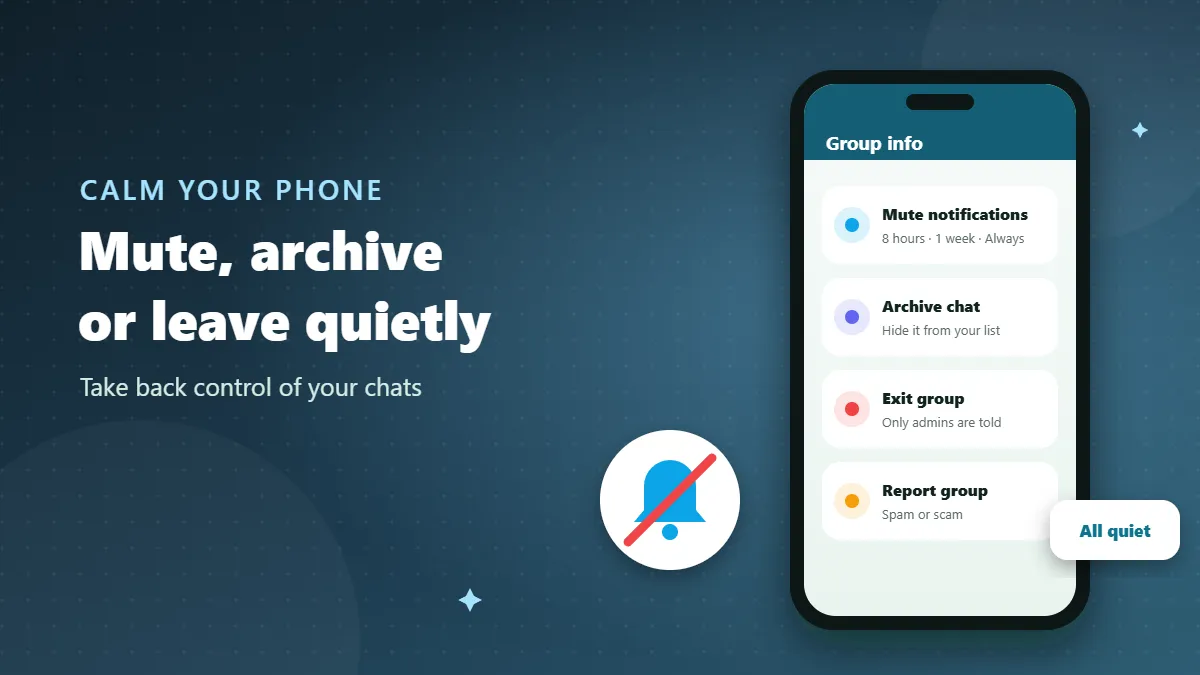
- Open the group and tap its name at the top.
- Tap Mute notifications (or Notifications → Mute).
- Choose 8 hours, 1 week or Always.
Nobody is told that you muted the group. You will still see an unread count on the chat, and you will still get notified if someone @mentions you or replies to your message, depending on your settings. Muting is ideal for family groups, work groups you need to keep, and large community groups you check once a day.
Tip: while you are on the group info screen, turn off Media visibility so the group’s photos and videos do not appear in your gallery.
Option 2: Archive the chat
Archiving moves the group out of your main chat list into an Archived folder. Combined with muting, it makes the group almost invisible until you choose to look.
- Android: long-press the chat and tap the archive icon.
- iPhone: swipe left on the chat and tap Archive.
By default, archived chats stay archived even when new messages arrive (you can change this in Settings → Chats → Keep chats archived). Archiving is perfect for groups you want to keep “just in case” — an alumni group, a building group — without seeing them every day.
Option 3: Leave the group quietly
When a group is no longer useful at all, leave it.
- Open the group info screen.
- Scroll to the bottom and tap Exit group.
- Confirm.
In current versions of WhatsApp, only the admins are notified when you leave; there is no announcement to all members. People may notice later if they look at the participants list, but there is no public “X left” message for everyone. This makes leaving far less awkward than it used to be.
After leaving, the chat remains in your list so you can still read old messages. If you want it gone completely, open it again and choose Delete group. You can also choose whether to delete the media from your phone at the same time.
Option 4: Report and leave
If a group is spam, a scam, or contains abusive content, report it rather than just leaving.
- Open the group info screen.
- Tap Report group.
- Choose whether to also leave the group, and confirm.
Reporting sends the most recent messages from the group to WhatsApp for review. Nobody in the group is told who reported it. If the group belongs to a directory like ours, use the page’s Report button too, so it can be removed from the listing.
Option 5: Stop people adding you back
Some groups re-add people who leave, or new groups appear with the same members. Go to Settings → Privacy → Groups and choose My contacts (or “My contacts except…”). After this, people outside your contacts can only send you an invitation, which you can ignore. If a specific contact keeps adding you, you can add them to the exceptions or block them.
Which option should you choose?
| Situation | Best option |
|---|---|
| Family group with too many forwards | Mute (Always) and turn off media visibility |
| Work or class group you must keep | Mute, check at fixed times |
| Old group you might need one day | Mute and archive |
| Group that no longer has a purpose | Exit group |
| Spam, scam or abuse | Report and leave |
| Strangers keep adding you | Privacy → Groups → My contacts |
What happens to your messages and data
- Your old messages stay in the group for other members. If there is something you do not want others to keep, delete it before leaving (if it is still within the delete-for-everyone time limit).
- Your number remains visible in old messages to anyone who scrolls back, even after you leave.
- Media already downloaded stays on your phone until you delete it. Use Settings → Storage and data → Manage storage to find and delete large group files.
- Backups: the chat stays in your backups until you delete it and a new backup runs.
Leaving without hurting feelings
In personal groups — family, friends, neighbours — a short message can avoid misunderstandings. You might write: “I’m cutting down on groups to focus on work; please message me directly if you need me.” Most people understand. For a wedding or event group, it is natural to leave a week or two after the event, perhaps with a thank-you message first.
If you are an admin and want to leave, first make sure someone else is an admin, so the group is not left without moderation. WhatsApp picks a new admin automatically if the last admin leaves, but it is better to choose someone yourself.
Doing it from WhatsApp Desktop or Web
If you spend your day at a computer, cleaning up groups is even faster on WhatsApp Desktop or WhatsApp Web. Right-click (or hover and click the arrow) on any group in the chat list to see Mute notifications, Archive chat and Exit group. Changes sync to your phone automatically. Desktop also has its own notification settings, so you can keep groups muted on your computer while leaving important ones audible on your phone, or the other way round.
Leaving versus being removed
When you leave by yourself, only admins are told. When an admin removes you, the group sees a system message that you were removed. If you are unhappy in a group, leaving on your own terms is usually more comfortable than waiting until a disagreement leads to removal. And if you are an admin, consider privately asking a member to leave before removing them publicly — it saves embarrassment on both sides.
Also remember that leaving does not block anyone. Members who saved your number can still message you directly. If someone from a group bothers you privately, block them from their chat and, if needed, report them.
A five-minute group clean-up
- Open your chat list and scroll through every group.
- For each one ask: did I read or use this in the last month?
- If no and it has no future purpose — exit.
- If no but you might need it — mute and archive.
- If yes but it is noisy — mute and check it on your schedule.
- Finally, set Privacy → Groups to “My contacts”.
Many people find they can leave or archive half their groups in one sitting, and their phone feels calmer immediately.
Preventing the overload in future
Once your chat list is calm, keep it that way. Before joining a new group, ask whether a channel on the same topic would give you what you need with less noise. Join event groups with the plan to leave once the event is over. And review your groups every few months — it takes only a few minutes when you do it regularly.
Taking back control of your chat list
You are never stuck in a WhatsApp group. Mute what you want to keep, archive what you rarely need, leave what no longer serves you, and report what is harmful. None of these options embarrass you in front of the whole group, and together they turn WhatsApp back into a tool you control rather than one that controls your attention.
Frequently Asked Questions
Does everyone see when I leave a group?
In current versions of WhatsApp, only the group admins are notified when someone leaves. Other members may notice later in the participants list.
Can I rejoin after leaving?
Yes, if you have a working invite link or an admin adds you again, unless the group requires approval or an admin blocks you.
Will my old messages disappear when I leave?
No. Messages you sent stay in the group for other members unless you deleted them earlier. The chat stays on your phone until you delete it.
Is muting forever possible?
Yes. Choose “Always” when muting. You will still see the unread badge, but no sound or pop-up.