How to Join a WhatsApp Group Using an Invite Link (Android and iPhone)
Updated 10 Oct 2026
Contents
- What a WhatsApp invite link actually is
- How to join on Android
- How to join on iPhone
- Joining from a computer
- Why an invite link might not work
- What to check before you tap “Join”
- Your first minutes in a new group
- Changing your mind: leaving a group
- Keeping your account safe while joining groups
- Joining by invite link in four steps
An invite link is the fastest way into a WhatsApp group. You do not need to know anyone in the group, you do not need to save a phone number, and you do not need to wait for someone to add you manually. You tap a link, WhatsApp shows you a preview, and you decide. Yet many people still get stuck: the link opens a browser page instead of the app, the button says “request to join” instead of “join”, or a message appears saying the link is no longer valid. This guide walks through the whole process on Android and iPhone, explains what each screen means, and shows you what to check before you press that green button.
What a WhatsApp invite link actually is
Every group has one invite link that its admins can share. It looks like chat.whatsapp.com/ followed by a long mix of letters and numbers. That code is unique to the group. When you open it, WhatsApp looks up the group and shows you its name, picture and sometimes a short description. Nothing happens to your account until you confirm.
Two details are worth knowing. First, the admin can reset the link at any time. Resetting creates a new code and the old one stops working immediately, which is why links found on old web pages often fail. Second, admins can turn on approval for new participants. In that case the link still works, but you send a request instead of joining straight away.
How to join on Android
- Tap the invite link. If it comes from a website, a text message or another app, Android usually asks which app to open it with. Choose WhatsApp. If it opens in Chrome instead, you will see a page with a green “Join Chat” button — tap it and choose WhatsApp.
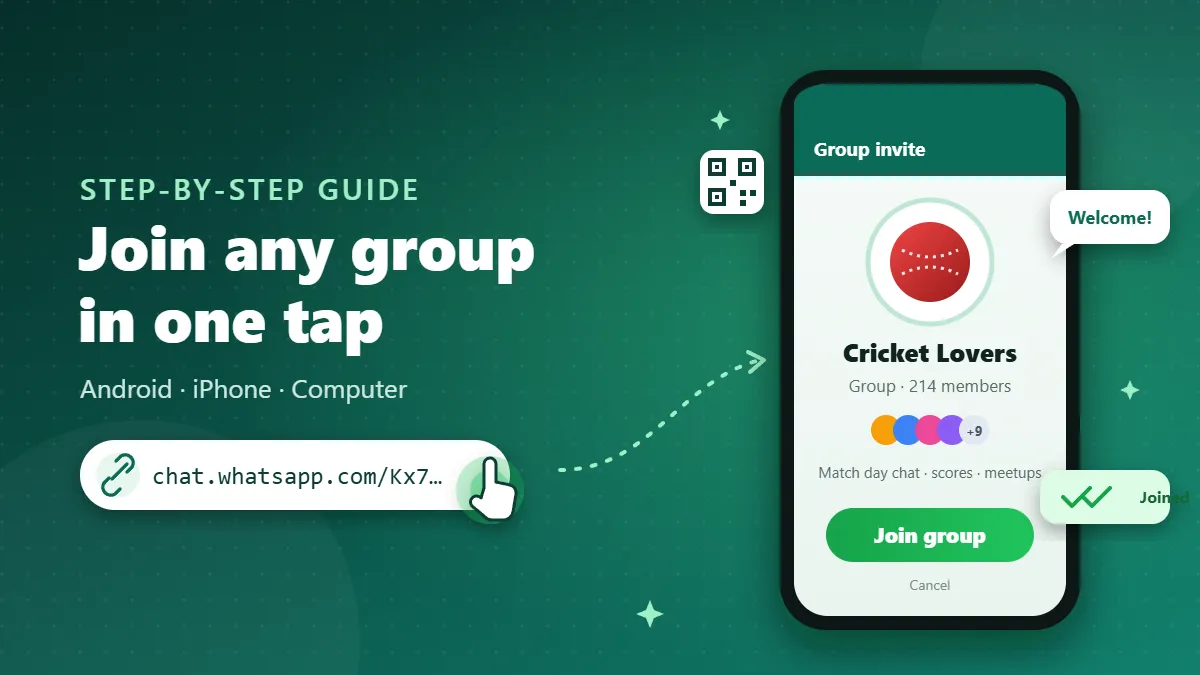
- Look at the preview. WhatsApp shows the group picture, the group name, and the number of participants in many cases. Take a few seconds here. Does the name match what you expected? Does the picture look like a real community or like an advertisement?
- Tap “Join group”. You are added immediately and the chat opens. You will see a system message saying you joined using the group’s invite link.
- If you see “Request to join”, tap it. The admins get your request and can approve or reject it. You can cancel the request from the same screen if you change your mind.
If nothing happens when you tap the link, open WhatsApp first, then go back and tap the link again. On some phones, a default-app setting sends all links to the browser. You can fix this under Settings → Apps → WhatsApp → Open by default and allow it to open supported links.
How to join on iPhone
- Tap the link. On iPhone, links normally open in Safari first. You will see a WhatsApp page with the group’s details and a button to open the chat.
- Tap “Join Chat”, then “Open”. iOS asks for permission to open WhatsApp. Allow it.
- Check the preview and tap “Join Group” (or “Request to Join” if approval is turned on).
A small tip for iPhone users: if you copied the link from somewhere, you can also paste it into any WhatsApp chat — even your own “Message yourself” chat — and tap it there. This skips Safari completely.
Joining from a computer
You can join from a laptop or desktop as long as WhatsApp Desktop or WhatsApp Web is linked to your phone. Open the link in your browser, choose to continue to the chat, and the join screen appears in the desktop app. This is handy if you found the group while browsing on a computer and do not want to send the link to your phone.
Why an invite link might not work
Almost every failed link falls into one of these cases:
- The link was reset. The message usually says the link is no longer valid or was reset. Nothing you can do on your side — you need the new link.
- The group is full. Groups have a maximum number of members. When it is reached, nobody new can join until someone leaves.
- You were removed before. If an admin removed you, rejoining through the link may be blocked for a period of time or require approval.
- The link is incomplete. When a link is copied from an image or a long message, a character is sometimes lost. The code must be complete for the lookup to work.
- Your app is out of date. Old versions sometimes fail to open new types of links, especially community and channel links. Update WhatsApp from the Play Store or App Store and try again.
On our directory, every listing is checked automatically and pages whose links stop working are hidden, so you see far fewer dead links than on random lists online. If you ever find one, use the Report button on that page.
What to check before you tap “Join”
The preview screen is your one chance to look before your phone number becomes visible to strangers. A short checklist helps:
- Does the name make sense? A group called “Karachi Cricket Fans” with a cricket picture is what it says. A group called “Earn 5000 Daily” with a stock photo of money is a warning sign.
- Is the size realistic? A brand-new group about a niche topic with a huge number of members can be a sign of bought or forced members.
- Do you know where the link came from? A link shared by a school, an employer or a known community page is more trustworthy than one posted in a comment section by a stranger.
- Are you comfortable sharing your number? In most groups, every member can see your phone number. If that worries you, consider whether the group is worth it, or look for a WhatsApp channel on the same topic, where followers do not see each other’s numbers.
Your first minutes in a new group
Once you are in, do not rush to post. Scroll up through the recent messages to understand the tone. Open the group info screen (tap the group name at the top) and read the description — many groups put their rules there. Check whether messages are restricted to admins only; some groups are announcement-style and members cannot post at all.
It is also worth deciding straight away how loud the group should be. Busy groups can send hundreds of messages a day. From the group info screen you can mute notifications for 8 hours, a week, or always. You will still see the unread count, but your phone stays quiet. Many experienced users mute almost every large group and simply check it when they have time.
Changing your mind: leaving a group
Joining is never permanent. Open the group info screen, scroll to the bottom and tap Exit group. Current versions of WhatsApp only notify the admins when someone leaves, not the whole group, so leaving is far less awkward than it used to be. If the group was spam, you can choose Report group on the same screen, which also lets you leave it.
Keeping your account safe while joining groups
Invite links themselves are harmless — they only open a preview. The risk comes from what people share inside groups. A few habits protect you:
- Never share the six-digit verification code WhatsApp sends you by SMS. Nobody in a group ever needs it, and anyone asking for it is trying to take over your account.
- Turn on two-step verification under Settings → Account. It adds a PIN that is required when your number is registered on a new phone.
- Treat links inside groups with care, especially ones promising prizes, free data or jobs that pay unusually well.
- Set Settings → Privacy → Groups to “My contacts” so strangers cannot add you to random groups without your knowledge.
Joining by invite link in four steps
Tap the link, let it open in WhatsApp, read the preview, and join or send a request. If it fails, the link was probably reset or the group is full — ask for a new link or find a fresh listing. Before joining, remember that members can usually see your number, and after joining, mute anything noisy. With those few habits, invite links become what they were meant to be: a quick, easy way to find people who share your interests.
Frequently Asked Questions
Do I need to save the admin’s number to join a group?
No. An invite link lets you join without saving anyone’s number. You only need WhatsApp installed and an active account.
Can other members see my phone number after I join?
In most groups, yes — members can see the phone numbers of other members. Some community and large-group settings hide numbers, so check before you join if privacy matters to you.
Why does the link say “invite link was reset”?
The group admin created a new link, which makes the old one stop working. Ask for the new link or look for a fresh listing.
Why do I have to wait after tapping Join?
The admin has turned on “approve new participants”. Your request stays pending until an admin accepts it.
Can I join from a computer?
Yes. Open the link in a browser on a computer with WhatsApp Desktop or WhatsApp Web linked to your phone, and it will open the join screen there.